01 / Agriculture Workspace
Interactive PrototypeBring the field’s story onto one map.
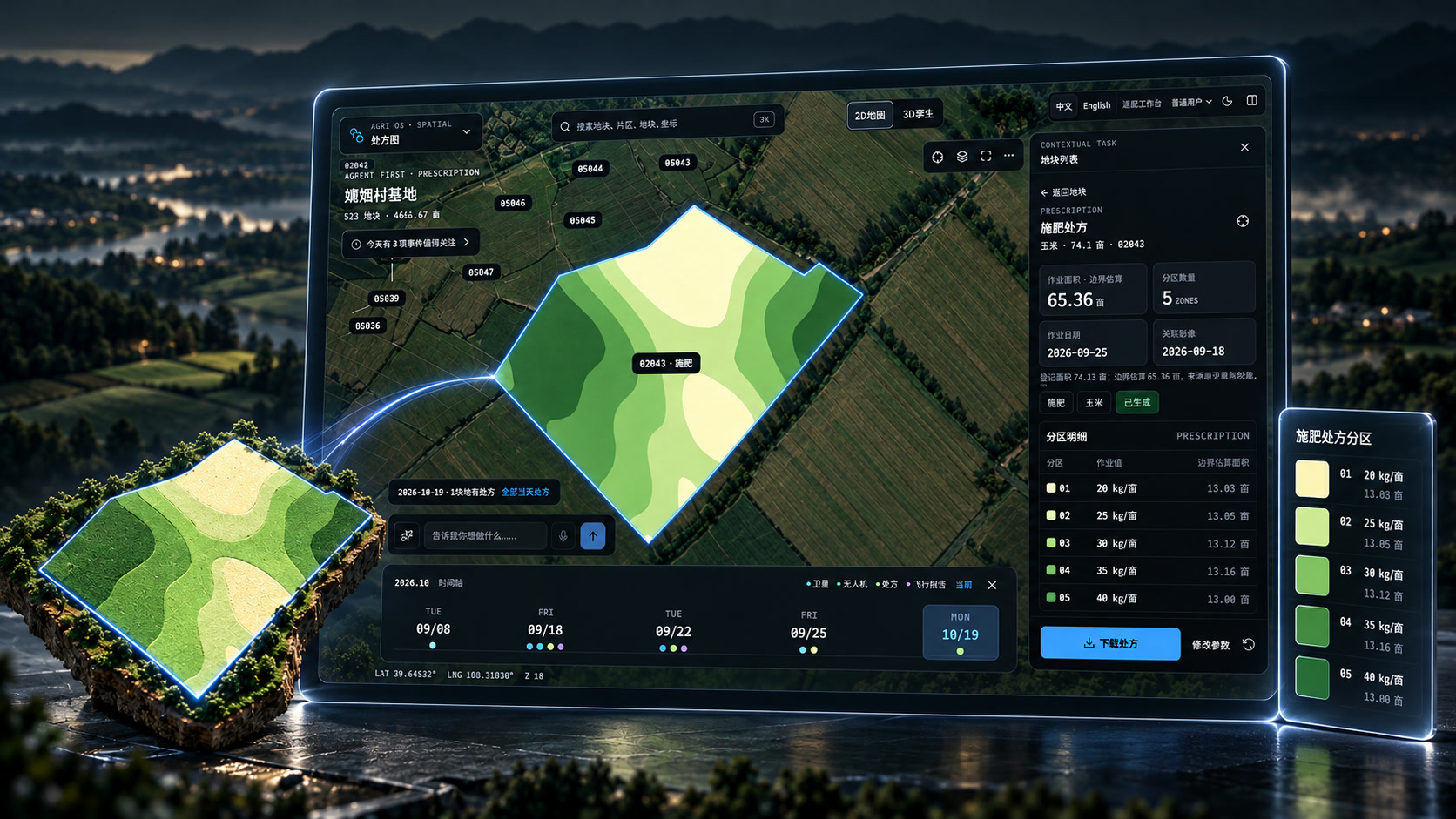
Which field needs a look, what information is available, and what to do next—without searching several pages. This design connects field selection, information and plan review.
- What ONELING did
- Understand everyday field tasks · Design screens and steps · Build a clickable demonstration
- What you can try
- Product design + an interactive prototype
A demonstration, not a connected farm management system. Fields, data and actions include simulations. Real growing outcomes are unverified.
Explore the prototype- The problem
- Maps, records and plans are on separate pages, so people keep finding the same field again.
- Product decision
- Choose the field first, then carry its information into the plan, review and confirmation.
- Delivered
- A clickable map demonstration with steps to fill a plan, confirm it and review the result.
TRY IT / INTERACTIVE DEMO
Choose a field. Try making a plan.
Select a field, view sample images, check values and confirm. Fields and data are for demonstration; this does not control equipment or provide farming advice.
- 01Select field
- 02View sample images
- 03Fill in a plan
- 04Review it yourself
- 05See the result on the map
Choose a field. See what belongs to it.
Maps, records and plans used to have separate entries. Select a field first, then find its information and possible actions together without locating it again.
Leave the map to find records and a fertilizer plan on other pages.
Select a field, then inspect its information and open a plan.
You already chose the field. Keep going.
Open a fertilizer plan from this field and bring its identity along. Check the sample values, confirm, then see the result on the map. This demonstrates the steps; it does not recommend real fertilizer use.
Implemented here: filling a plan, reviewing it and showing the result. Automatic disease detection, scouting assignments and work dispatch are not completed capabilities.
Ask for a task. Check it before anything happens.
The demonstration recognizes a few predefined requests and opens the same plan form. You still check and confirm the details. The system does not decide fertilizer use on its own.
- Choose a field
- Remember which field you are viewing
- Ask for an action
- Open its plan with the field already selected
- Review and confirm
- Return the confirmed demo result to the map
The longer-term aim is to connect field information, crop growth, unusual changes and follow-up visits. Real data and field validation are still needed. This is neither live AI diagnosis nor a validated virtual farm.
What this demo can—and cannot—doWorking interactions and connections still to be made
Fewer pages to search. A clearer way to see the field and act.
← Back to work